Tech
Apple delayed shipment of 2020 MacBook Air. Understandable. Buyer’s remorse came fast and furious so I canceled. I’ll keep mashing those butterfly keys for a while longer.
I’d say nationwide telework went very well this last week. Only had a few hours of repeat VPN disconnections. Bandwidth was not constrained relative to my home internet. Good job, CIO staff!
“Hey Siri, play some music.” “Okay, let’s kick things off with Widespread Panic.” 😳
Working from home today - nationwide stress test of VPN.
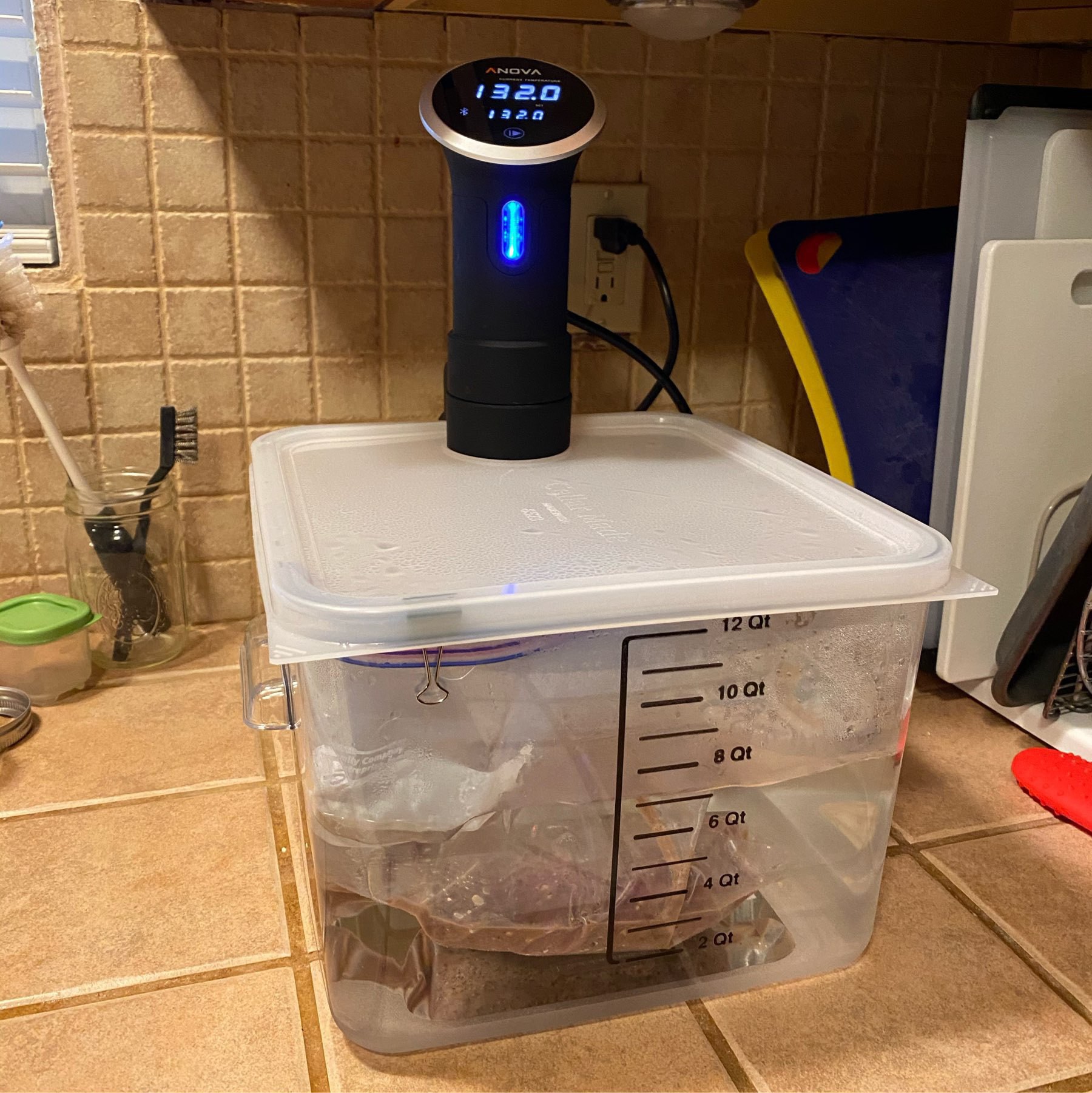
Not going anywhere unless necessary so time to try Sous Vide London Broil. Just under two pounds of meat held at 132°F/55.6°C for 8 hours. Just salt and pepper for the beef. Will sear it to finish.
At the USDA, I’m not allowed to telework as I haven’t been personally affected by SARS-CoV-2. I’m capable of telework and I prefer it. Guess they’re waiting for mass infections at workplaces first. USDA significantly curtailed telework ~two years ago.
A Very Good Overcomplicated Journal Workflow
Our journal workflow is probably more complicated than it needs to be. There’s room to optimize this workflow. It grew out of our moving away from Day One when they went to the subscription model. At the time there were some terrible limitations and we wanted none of it. Instead, we went with a semi-automated method involving iOS Shortcuts, iOS Notes, 1Writer, Homebrew (for Pandoc and LaTeX toolchain), and my favorite Swiss army knife GraphicConverter. The final archival format of each journal entry is a beautiful, open standard and searchable PDF generated by Pandoc using LaTeX (MiKTeX distribution).
The Shortcuts step creates or seeds a range of dated Markdown files with dated headers. The filenames follow the very sortable format of “yyyy-MM-dd HH.mm.ss.md” or, for example, "2020-02-09 19.24.38.md". Of course, with Shortcuts limitations interacting with Files, I have to create the files in the Shortcuts folder and then move them to the 1Writer iCloud folder shared with my partner. 1Writer is thus setup to save all journals to iCloud folder where both my partner and I can write.
If we need to add a photo to a journal entry, we split screen with 1Writer and Photos and drag a photo over to 1Writer. 1Writer puts the image file, with the original filename, in the same folder as the Markdown files. If we need a collage, we create it in Google Photos app (though we don’t actually use it for sync!) because it does a really good job at collages of photos with different dimensions. Google Photos saves the collage to Photos and we go from there.
Once a month’s worth of journal entries (Markdown files) are complete, I then have a workflow to convert the Markdown files to PDFs. This is where Finder, GraphicConverter, Pandoc and LaTeX come in.
Since 1Writer is using iCloud, it’s all downloaded to my MacBook without any effort. So first I copy the files to a non-iCloud syncing folder in my ~home folder or into a folder with .nosync postfix.
Next, some photos won’t be properly rotated, so I use GraphicConverter to Auto-rotate photos by clicking the Rotation icon on a thumbnail in Browse mode.
Next, I finally run a command that I modified from somewhere on the internet. I was not talented enough to put this command together from scratch. This command is why I had to wait on installing Catalina until Homebrew was compatible with it. With the following command, you just need to have a working Pandoc and LaTeX environment with a subfolder named Archive:
cd ~/Journal-compile/
for f in *.md; do pandoc $f -o ./Archive/${f%.md}.pdf -t latex; done
Then I load GraphicConverter, and in Browse mode, use the “Set Exif Date from Filename” tool on all the freshly minted PDFs. This sets the file date to the date of the journal entries. The format I use is YYYY-MM-DD. Then I copy the PDFs and source files (with images) to various Cloud and NAS folders. Of course, I keep the PDFs separate and that’s what we always reference back to. PDFExpert is currently our choice app for viewing journals since it has excellent file content search and SMB syncing.
Now, a lot of this is broken up so the workflow isn’t onerous. But I admit for most people, this is just ridiculous. But the benefit of this workflow is our memories are in a open format where it matters with no proprietary nonsense.
Since you likely read through all of this, here’s the Shortcut for generating blank journals. I bet it is also more complicated than it needs to be. But it works well.
11/15/2020 - edited to reflect that we now use iCloud Shared Folders to edit journals directly in 1Writer. Previously we had to use Notes first, then transfer to a Markdown file, complicating things a bit. It also now reflects that zsh, the shell that MacOS started using since Catalina, no longer cares about path or filename spaces. But realize, there is still a very powerful Rename tool in Finder in the right click context menu,
The pull to “like” on Twitter is impressive. I’m doing my best to refrain but my finger has a mind of its own.
House Wiring is an Adventure
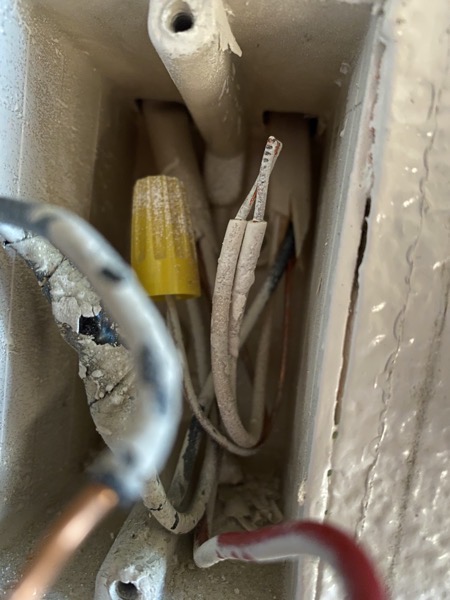
I finished installing some new switches today. Worst thing I found in the existing wiring that I could fix myself was paint coated copper under the wire nuts. Whoever did that must think wires work off of luck that the wire nuts cut into the copper or magic or induction. Pictured below are neutrals that were paint covered. And you wouldn’t be wrong to guess that the grounds were also covered in paint. I scraped them off and cut off the tips and then installed the new switch. Hopefully overall this is an improvement to the wiring! Also: I love my iPhone’s night mode for taking photos like the below. It’s not just for night!
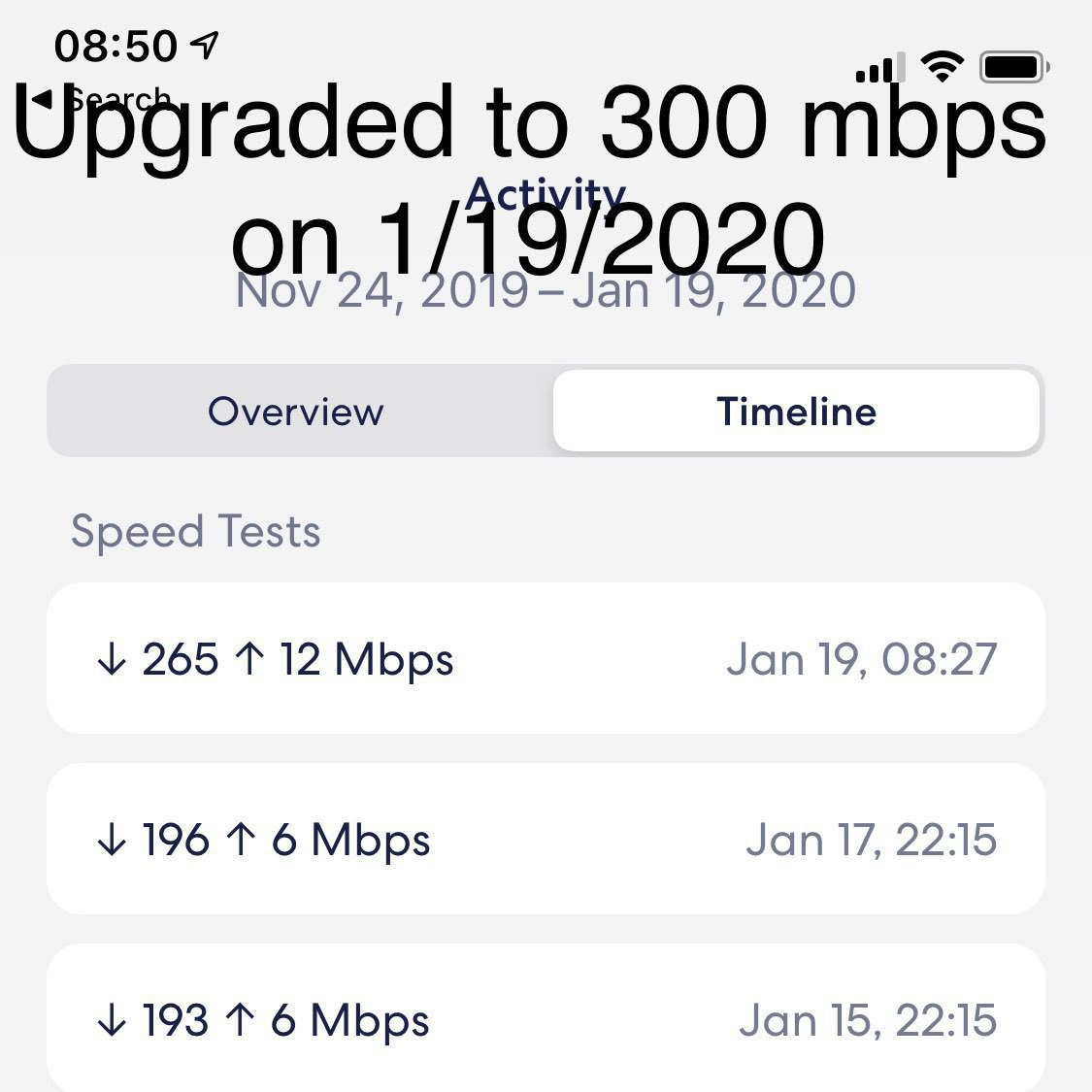
Upgraded from (down/up) 175/6 Mbps to 300/11 Mbps soon as I hit the “order” button. $1 less, too. No contract. Worth checking Xfinity internet-only plans periodically! Unreasonably excited at double up speeds.